Showing posts with label machines. Show all posts

Saturday, October 26, 2013

Conserving screen space in GNOME


I finally found a tool to accomplish something I have wanted for a long time, namely tuning the size of icons and buttons in Gnome. Gnome applications waste a lot of precious screen space by default, probably the default settings are developed for and by people with six HD monitors at their desks. On a tiny screen such as the 1024x600 screen in my eee-pc, pixels are precious and should not be wasted.

The tool I found is called gnome-color-chooser. Install it with

sudo aptitude install gnome-color-chooser

I should say that I'm using Linux Mint Debian, with the Mate desktop based on Gnome 2. Gnome 3 appears to be configured differently, judging from a quick search.

The color chooser tool allows you to choose the colors of different elements, but it has several settings for button sizes and icon sizes as well. First, let's set all paddings to 0, except the y-padding of widgets which I chose to keep as 1. Check Use shadowless Menubars and Use shadowless Toolbars. On the Icons tab, you can set icon sizes. I set the sizes to 14-12-12-12. I particularly liked the setting Start menu, setting it to 12 pixels made the menu small, nice and manageable.


What the tool actually does is to provide settings in a file included from .gtkrc-2.0.
As the Archlinux Wiki points out, one can also modify the .gtkrc-2.0 file by hand.

Other settings to change for a compact look:
  • System > Preferences > Appearance, Fonts-tab, Details-button. Change Screen resolution from 96 to 80. For some reason, this setting works better than changing the font sizes.
  • System > Preferences > Appearance, Themes-tab. Controls: Clearlooks, Window borders: Mint-X, Icons: Gnome


While at it, fix the file manager preferences:
  • View new folders using: Compact View
  • Compact view defaults, Default zoom level 66%
  • Uncheck All columns have the same width
With the latest update pack for LMDE, many application started to display the following warning when run in a terminal. I frequently launch emacs from a terminal to edit files, then the message clutters up the terminal.

Fontconfig warning: "/etc/fonts/conf.d/53-monospace-lcd-filter.conf", line 10: Having multiple values in <test> isn't supported and may not work as expected

A quick fix to get rid of this annoyance is to comment out line 10 of the offending file:
<!--  <string>Bitstream Vera Sans Mono</string> -->
I figure this might change something, but it looks that the file was broken anyway as it was shipped.

Sunday, October 20, 2013

New disk for an old eee-pc


Our trusty eee-pc 901 was getting slower and slower. The 16G SSD in it was not very fast to begin with, but has definitely become slower over time. To keep the otherwise nice laptop running for a few more years, I decided to upgrade the SSD. The drive I ended up buying a 64G Super Talent FPM64GLSE. RunCore disks have a reputation for being faster, but they were also more expensive and hard to obtain. The eee-pc requires a PCI-E disk. There are also newer mSata disks available. These use a physically similar connector as PCI-E, but are not compatible.


A quick test of the Super Talent with iozone yielded the following results, in KB/s. The same settings were the same as when measuring SD card performance on the raspberry Pi earlier,
./iozone -e -I -a -s 50M -r 4k -r 512k -r 16M -i 0 -i 1 -i 2

                                   random random
reclen write rewrite   read reread   read  write
     4 17258   20110  12626  12623  12528   1457
   512 74590   41339 127710 127909 121887  74354
 16384 40403   75312 129705 129748 130483  40077

As with SD cards, the speeds that the manufacturers specify is the rate of sequential reading or writing of large contiguous blocks (Reading max 150 MB/s, writing max 100 MB/s is what they specify). Randomly writing small blocks of data is a much slower. Still, I am pleased with this result. Also in practice the upgrade had a large effect, the laptop feels much more responsive.

An annoyance with this drive is that it is configured as a slave. When booting the eee, it complains that no master disk is present and demands to press F1. When F1 is pressed, the boot proceeds normally, the unnecessary message just prevents the machine from booting unsupervised.

I installed Linux Mint Debian Edition on the new drive. I had Ubuntu 11.10 before, which started to show its age. I decided not to upgrade it, after experiencing Ubuntu 12.04 on another machine - I felt that the upgrade to 12.04 broke the user interface.

I am happy with Linux Mint. However, I came across a couple of problems during the installation. One that looked serious was that GParted reported errors about a recursive partition on the newly installed disk. I could not get rid of this message but decided to continue the installation anyway, and it turned out fine. To reduce the disk writes and the wear, I added noatime to the mount options for the disk in /etc/fstab.

Thursday, October 17, 2013

Airport luggage cones


Found these beauties at the airport. My theory is that they have something to do with luggage transport.

Sunday, July 28, 2013

Yashica D resurrection


I found my uncle's old camera when sorting some old things, a Yashica D. It has been non-operational for the last 20 years, used mainly for projecting images through the viewfinder onto the ceiling with a flashlight. Now I started wondering if the camera could be used for photography again. The camera looked to be in a nice condition, but the shutter was stuck.

Kalle came to the rescue, armed with an excellent guide to disassembling the shutter on the Yashica D. We followed the guide, disassembled the shutter mechanism, and found that two shutter blades had stuck. We cleaned the blades and assembled the shutter again, and it worked!


While taking the camera appart, we had to unscrew a lens without damaging or scratching it. A bottle opener turned out to fit the lenses well and gave a suitably gentle but firm grip.


The shutter is designed in modules, with the self timer and the shutter speed regulator working as independent units. Each one is a kind of clockwork with several cogwheels in series. At one point we opened the wrong screw, and the shutter speed regulator came apart. Putting it back together again was a real challenge, as it contained several small wheels and springs. It was difficult to get all the pieces positioned correctly, so that the top cover could be put back on. What worked for us in the end was clamping a few pieces of cardboard to the desk, and to keep the timer module and its various parts in place with pins stuck into the cardboard.


I am very impressed by all the small mechanical parts in the shutter, especially considering that it all must have been designed without using computers. It was very pleasing when we got the camera put back together again, and to actually see it work. Kalle has already shot a couple of film rolls with it, here are a few samples.

The shutter disassembly guide by Dave Gauer was invaluable to us. We also found it useful to take photos of the parts in various stages of disassembly, in order to check the placing and orientation of the parts later when reassembling, and to keep the screws and small parts that came off in each step in a separate bowl.

Wednesday, January 2, 2013

Wiring A Wireless Doorbell

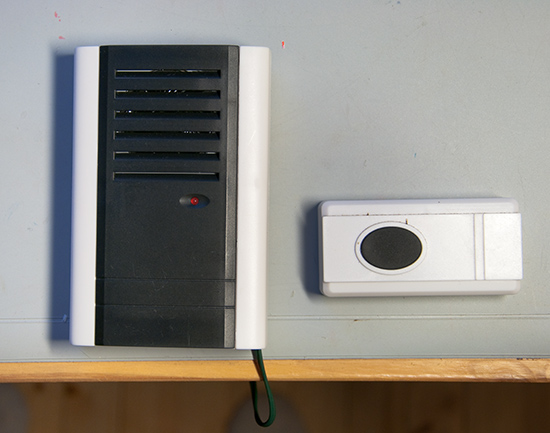
Wireless doorbell

My father-in-law installed a wireless doorbell. The ring-button outside the door contains a battery and a radio transmitter, the indoor unit contains a radio receiver and a speaker. It turned out that the battery in the ring-button outside does not like the cold Finnish winter, so it went flat. It seems this doorbell is best suited for indoors use...

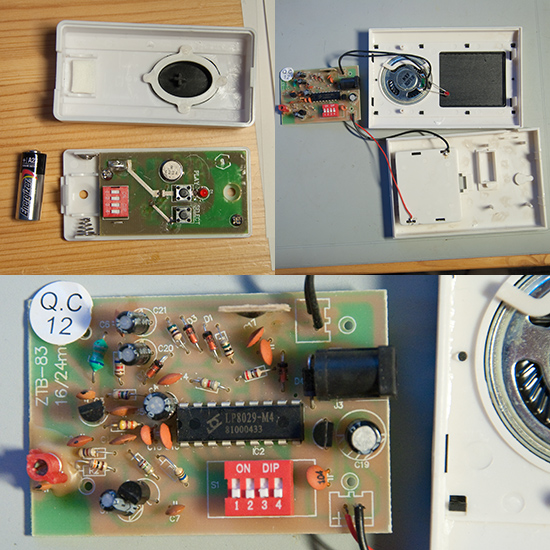
We planned to replace the transmitter with an old-fashioned switch with wires, and move the transmitter indoors. Opening up both the receiver and the transmitter first revealed a rather sloppy soldering job, then something about the design of the transmitter and receiver.

Wireless doorbell LP8029

The transmitter contains an encoder chip LP801B, while the receiver contains a LP8029 decoder. The radio circuitry appears to be built with discrete components in both units. The transmitter circuit board has two push-buttons: one for ringing and one for changing the melody. Only the ring-button is accessible when the cover is closed.

The receiver contains a melody generator chip, under a black plastic blob. Both units have a bank of four dip switches. Pressing the transmitter button causes a noise inside only if the switches in the receiver and transmitter are in identical positions, this is to avoid hearing the doorbells of all neighbors.

modified wireless doorbell

The initial plan was to move the transmitter inside, and connect the ring-button outside in parallel with the ring button on the transmitter. After a look at the Japanese LP8029 data sheet, I found a point in the receiver circuit that starts the ringing noise when momentarily connected to the positive supply. I wired the outdoors button to this point. The transmitter module is now needed only for selecting the melody, the receiver on its own works as an old-fashioned wired doorbell.

schematic

It was hard to find any information in English about the LP801B and LP8029 chips. An Austrian hacker found the same encoder chip in the transmitter for radio controlled mains switches. He figured out how to connected the transmitter to a microcontroller, to switch things on and off from a program.

Sunday, November 18, 2012

Boxing the 'Berry


The raspberry router of an earlier post turned out to work well, but it definitely needs an enclosure. The fast & easy solution - put everything inside a plastic Smart Store box! (The same kind of box we modified for storing Legos.) The box contains a USB hard drive, as well as the Pi and GSM modem, so we can use the Pi as a file server.

The Pi, the network switch, the USB hub and the hard drive each has its own power supply, so we included a power strip in the box. The many power sources take up a lot of space in our current system. If all the devices could share one, the system would shrink considerably.

Each machine has its own LED, and at night, the whole thing looks like a box of holiday decorations.

The box is kept slightly ajar for the cables going into the box, which seems to provide enough ventilation as well. Measuring the raspberry's CPU temperature with
cat /sys/class/thermal/thermal_zone0/temp
consistently reports around 46 C.

This setup turned into a surprisingly nice media player as well, once I connected our old TV set to it. We have no keyboard connected to the Pi, so we just ssh to it and run the omxplayer. I plan to give XBMC a try later, but getting it set up on a standard raspbian systems seems rather involved.

The current setup is somewhat temporary - in the future, I hope to put everything inside the case of a desktop PC, to function as a power conserving and silent always-on server, independent of the main PC.

Sunday, November 11, 2012

Happy Father's day!

We have no cute ducks to post today in celebration, so we post a picture of bread instead.


This is what happens when one forgets to add yeast when operating the bread machine: a very flat bread. We are happy to report that it tasted good nevertheless, the structure was just a bit more compact than usual.

Wednesday, November 7, 2012

Favorite Games: OpenTTD

This is the first post in a small series about computer games I like. I plan to focus on open source and independently made, or just plain home made, games. Suggestions or tips are naturally welcome in the comments!


The first game is OpenTTD. This is a great game for us who did not get a model railroad when we were kids. OpenTTD is an open source variant of Transport Tycoon Deluxe from the 1990:s.

The aim is to move cargo, mail, and people between cities and factories, and of course to generate profits for your transport company. There are many vehicles to choose from, but trains are by far the best. Building an efficient railroad network with good-looking and optimal intersections is a real challenge. When a city receives good transport service it grows, and getting the cities to grow as large as possible, extending your customer base, is one of the main goals. The game can be a bit stressful when there are hoards of people in each city waiting for your trains (if you're the type to care).

I have played OpenTTD at LAN parties, which is great fun. I prefer cooperative multi player games, in which one can build huge railroad networks together with friends. The MIDI music in the game is great, both the original tunes and the free ones composed for the open version. An active community has grown around the game, with a forum and a wiki. Railway signals, for example, is a complex topic, luckily there is good help in the wiki gameplay manual.

As a bonus, one learns geography when playing scenarios set on real-world maps, such as the town of Urk in the Netherlands on the screen shot above.

The Favorite Game series


Thursday, November 1, 2012

Raspberry Router


I wanted to set up my Raspberry Pi as a 3G router for my small home network,  and as a file server too. It worked out nicely, so here are some notes and links that helped me.  My internet connection is provided by a USB GSM modem (Huawei E173), so the first task is to get this device running on the Pi. This was surprisingly easy, thanks to the sakis3g script.

I learned that once you start messing with the network, downloading new stuff gets tricky - so it's best to get everything at once.
sudo apt-get install ppp isc-dhcp-server usb-modeswitch 
and download sakis3g
wget "http://www.sakis3g.org/versions/latest/armv4t/sakis3g.gz"

EDIT: The Sakis3G web page is down at the moment, but a local copy of the script is here: sakis3g.gz (version 0.2.0.e).

The Pi can probably not supply enough current for the 3G modem through the USB ports (thanks for the tip), so I connected the modem through a powered hub. Without the hub, the modem did not work.


The sakis script was easy to use, it asked me to select my modem and then the network name (APN). When the connection works, one can write the selections in a configuration file to avoid having to enter them again. In sakis: "More options..." -> "Generate success report" shows a lot of info. Last in the list, there are the options needed to connect. Copy these (except  --console and --interactive) to the file /etc/sakis3g.conf with one option per line. Sakis does not like any extra whitespace on these lines. Now it should be possible to connect with  a simple sudo sakis3g connect.

I found a nice guide to setting up the pi as a router. This worked well for me, I just had to change which network interface is connected to the local network (eth0 for me) and which is connected to the outside (ppp0).


A small complication has turned up with the GSM modem. The modem is a multimode USB device, and must be switched into the correct mode before actually working as a modem. Sakis handles this automatically (using the usbmodeswitch program I installed above). The trouble is, that when the modem is switched, it changes its USB device ID. So the device option to pass to sakis is different the first time and any later time sakis is run without unplugging or powering down the modem in between.
The broadband company seems to drop the connection after 24 h. I think I will put a cron script for reconnecting at 5 in the morning or so. I came up with the following command for finding the current USB ID of  the modem and passing it to sakis.
sudo sakis3g connect USBMODEM=\
`lsusb | grep Huawei | sed 's/.*ID \([a-f0-9:]*\) Huawei.*/\1/'`
sed is a strange creature! grep finds the relevant line, and the sed command extracts the ID number between 'ID ' and ' Huawei'. This is of course assuming that exactly one huawei device is present.

I post some of the configuration files here. In this later post, I added a WLAN stick and got the Pi set up as a WLAN access point, these files are for a WLAN device as well. If you don't have one, just ignore those sections.
my /etc/networks/interfaces:

auto lo
iface lo inet loopback

auto eth0 #static address on eth0
iface eth0 inet static
address 192.168.50.1
netmask 255.255.255.0
network 192.168.50.0
broadcast 192.168.50.255
gateway 192.168.50.1

auto wlan0 #static address on wlan0
iface wlan0 inet static
address 10.10.0.1
netmask 255.255.255.0

And then /etc/dhcp/dhcpd.conf

ddns-update-style none;
default-lease-time 600;
max-lease-time 7200;
log-facility local7;

#for the eth0 subnet
subnet 192.168.50.0 netmask 255.255.255.0 {
range 192.168.50.10 192.168.50.250;
option broadcast-address 192.168.50.255;
option routers 192.168.50.1;
default-lease-time 600;
max-lease-time 7200;
option domain-name "local";
option domain-name-servers 8.8.8.8, 8.8.4.4; #Google DNS
interface eth0;
}

#for the wireless network on wlan0
subnet 10.10.0.0 netmask 255.255.255.0 {
        range 10.10.0.25 10.10.0.50;
        option domain-name-servers 8.8.8.8, 8.8.4.4;
        option routers 10.10.0.1;
        interface wlan0;
}

Friday, October 12, 2012

Cyborg bread

Bread with bread macine mixing blade stuck inside.

Sometimes, bread machine parts are left inside the finished product.

Wednesday, August 29, 2012

SD card benchmark on the Raspberry Pi

This thread in the Raspberry forum and this post discuss benchmarks of different SD cards for use with the Raspberry Pi. I wanted to test my own card, and to do it in the Pi itself. An important conclusion of the two discussions is that the speed of small random writes is important for running an operating system of the card. What the card manufacturers report is the sequential read and write speed which can be substantially higher - these are important in cameras for example.

The posts suggest the program iozone for measuring the SD card performance. I could not find it as a raspbian package, but it was easy to compile from source. Very quick instructions follow.

wget http://www.iozone.org/src/current/iozone3_408.tar
cat iozone3_408.tar | tar -x
cd iozone3_408/src/current
make linux-arm
./iozone -e -I -a -s 50M -r 4k -r 512k -r 16M -i 0 -i 1 -i 2

The final command runs the test. This command line was suggested in the raspberry forum, for the options run iozone -h . Note that iozone tests the device where the current directory is located. The flags -e and -I are significant here. -e include fflush and sync in the timing, while -I requests the use of direct I/O, without any caching.

For my SanDisk 8G class 4 card (8 €, Media Markt) I got the following results. See here for a picture of the card and packaging.
                                          random  random   
reclen   write rewrite     read   reread    read   write
     4     913     991     3279     3278    3061     457
   512    5292    5370    11305    11304   11218    1319
 16384    5122    5442    11442    11442   11442    5406

The column reclen gives the size of the data blocks tested, while the other columns are speeds in KB/s. For this card, the important figure for small block random write is quite respectable but not as high as what other people in the threads above have reported for the best cards. Anyway, SanDisk cards of class 4 or 6 seem to top the list.

But benchmarking a SD card seems to be a more complicated topic than running the short test above. In practice using RAM for cache gives a huge performance boost, in particular for small writes. My guess is that whether the small random writes will be a bottleneck or not is very much dependent on the application.

I ran two further tests with iozone, using the flag -a (for automatic): once without cache enabled (-e -I) and once with cache. In the -a mode, iozone runs tests for many different file sizes and block sizes. Each test ran for over an hour before I interrupted it. This made me wonder if this amount of writing will wear out the SD card. So far I have seen no problems.

As long as the data written fits in the RAM, cache gives a huge improvement. At a file size of 64 Mb there is a significant speed drop when the cache becomes too small.   

Friday, August 17, 2012

Trying out the Raspberry Pi

I am a happy owner of a Raspberry Pi - a tiny (and really cheap) computer, capable of running Linux. Now I too am a part of the Raspberry revolution. I am just starting to try it out, but I already got our platform game running on it! More on the game will follow in a later post, first some notes on the Pi itself.

I decided to try out the Raspbian flavor of Linux on the Pi. I chose this for the hardware floating point support, and since the Raspberry Pi foundation recommends it.

I currently don't have an USB keyboard, so I hoped to access the Pi over the network with ssh. Luckily, Raspbian is set up with an ssh server running. The only things required is to make sure that the Pi gets an IP address when it boots, and then find out which IP it got so that you can ssh to it.

I connected the Pi to a laptop running ubuntu, and tried to use the network manager on the laptop to give the Pi an IP address with DHCP when it boots. Sadly, this did not succeed. Apparently the laptop Ethernet interface stays "down" as long as nothing is connected to it (the Pi is off), and the Pi got no IP address when it booted.
Fortunately it was easy setting up a DHCP server on the laptop manually:
1) Turn the network manager off, so it does not get in the way
2) sudo ifconfig eth0 192.168.0.2 #enable eth0, give it an IP address
3) sudo udhcpd -f
4) boot the Pi, wait a while.
5) udhcpd prints out the IP address it offers
6) ssh to the address. User name pi, password raspberry.


If you have the Pi connected to a TV or monitor, you will see the Pi printing some messages while it boots, and then launch the raspi-config program.  Without a keyboard raspi-config is not usable, but you can still access the Pi with ssh. Raspi-config seems to start automatically at each boot, until you have completed it once.  It can be run from a terminal at any time.  If one wants the Pi connected to the internet, some more networking is needed than what I describe above. A router would probably be the most convenient solution. I have had success with Windows "internet connection sharing".

EDIT: When trying to share an internet connection from an Ubuntu laptop to the Pi, this bug bit me. After the suggested work-around, sudo killall dnsmasq on the laptop, I could boot the Pi and it got an IP address. Then the next problem appears: how to find the IP address of the Pi? The Pi prints it on the TV or screen during boot. If no screen is connected one can use the nmap tool:
nmap -sP 10.42.0.1-254
this IP range being the one that Network Manager seems to offer. -sP tells nmap to ping all the hosts in the given range.

I have a PAL TV connected to the Pi. PAL needs a setting in the configuration file config.txt, located on the boot partition (the small, FAT one) on the SD card. Either edit this file on the card and uncomment the line
sdtv_mode=2
or use raspi-config on the Pi.


In this discussion and here I found interesting observations about which SD cards work well with the Pi. Apparently the fancy and expensive cards, called Class 10, are not the best since they are highly optimized for sequential reads and writes. This is good for photography but not for running Linux of the card. For this application, the speed of short random reads and writes is much more important, and these speeds may well be much better on cheaper cards of lower class. I got an 8 Gb Class 4 Sandisk SDHC card from the local Media Markt for 8 €. It seems to work well, but I have no serious benchmarks yet.

Thursday, July 26, 2012

File for laser cutting girih tiles


The laser cutter reads vector graphics; a red line means 'cut' and a black surface means 'engrave'. I made an svg file with the girih tiles placed side by side. You can download the file, visit your local Fab Lab, and make your own girih tiles! There is some room for improvement in the file - each side is cut twice, which is a waste of time and possibly burns the acrylic more than necessary. This file works fine, but it would be even better if one would remove those double lines.


View Fab Labs on Earth in a larger map

Contents of the file:


At the sides of each piece, there is a 'teeth' pattern, which I put there to make the pieces align better. Another 'innovation' is the double black line that forms the outline of a rope tied in an infinite knot, with a crossing at the sides of each girih piece. It turned out that it is possible to design the tiles so that the rope regularly passes above, then below, then above... for any pattern that one builds with them.

More pictures of the tiles and of the laser cutting process.

Wednesday, July 18, 2012

Laser cutting Girih tiles

Laser cutter
The laser cutter at Fab Lab Groningen.

Laser cutting girih tiles
The machine can both engrave and cut. It is almost magical to see one's design gradually appear as a physical object. Here the laser is cutting our girih tiles from a 3 mm acrylic sheet. The machine does the engraving first, one sees the knot pattern formed by the pieces appear. This is how girih patterns typically look when they are used for decoration, you see the knot pattern but not the borders between the pieces. Then the pieces are cut. The cut lines are quite different from the lines drawn on the tiles. Probably this is part of the reason for the complexity and beauty of girih patterns.

Laser cutting girih tiles
I find the Fab Lab concept fantastic, giving anyone the chance to use this kind of professional fabrication machines. They had 3D printers and a CNC mill as well. Not to mention the nice people at the Fab Lab, guiding me through the process of using the laser cutter!

Someone else also made a set of  laser cut girih tiles, at the Fab Lab in Lille. Some more pictures of our tiles, and the svg file for the laser cutter.

Wednesday, March 21, 2012

Robot cookies


Got robot-shaped cookie cutters as a present!


Made a couple of differently colored and flavored cookie doughs with the help of some very patient friends. Red - plum, orange - cinnamon, yellow - vanilla, yellow-green - ginger, green - lime, purple - cardamon.


Army of robots.

Wednesday, February 29, 2012

Game programming notes

I have learned a bit about game programming by writing a platform game. Today's post is about the libraries and tools and resources that have been useful in this process.

Graphics
Much of the hard low-level work in the game is done by the SDL library.  This library handles drawing graphics and playing sounds in a simple way. Best of all, the library is available for Linux and Windows and several other platforms as well, which makes it simple to write a portable game. I learned how to use SDL from the official documentation and by reading Lazy Foo's tutorials. In addition to the SDL library, we use the following additional modules:
SDL_gfx   for drawing primitives and frame-rate control
SDL image  for loading images in various formats (png)
SDL mixer  for playing sound clips and loading ogg files

Sound
Most of the sounds in the game were generated with the small program sfxr by DrPetter. The program generates sounds with a nice 8-bit feeling. One can tune the sound by changing a set of parameters, like the frequency and wave form. One can also control the sound envelope with attack, decay, sustain, release like on the good old Commodore 64. Sfxr produces wav files.  I packed these in the ogg format. In the game code, it is then simple to play the ogg files at appropriate times with the SDL_mixer library.

Data files
I want to minimize the number of files that have to be distributed with the game. Unfortunately the libraries used require a number of dll files (on Windows). But at least one can pack all the game data in a single archive file. So far I have used the zziplib-library to access game files that are packed in a zip file. See also this post for some details on how to get zziplib to work well with SDL. Compiling zziplib on Windows was not trivial, but this I save for another post.

One could also try to pack the game data in the game executable file. Here is a hackish method to create a file that is both the game executable and a valid zip archive, which can be read with zziplib. Another way is to simply compile the data into the exe file. I found that the Linux command-line tool xxd can format a data file as c array (use the flag -i).

Future
An installer system for Windows would be nice. The Nullsoft installer seems promising. Another lighter alternative would be some self-extracting archive.

Saturday, January 21, 2012

Shiny and New


Ordered some new polymer clay tools from a German online polymer store - a Kemper needle tool, a ripple blade, and a set of tiny 5 mm (5/16 in) Kemper shape cutters.

Saturday, January 14, 2012

Platform game, release 0.02

Now it is time for a new version of the platform game! This time it is possible to win the game and also to die, so now there is a clear goal for you. As before, comments and bug reports are welcome.

The game for Windows. Download the zip file and extract the folder. Double-click the file game.exe to run the game.

The Game for Linux 32 bit, and The Game for Linux 64 bit. Download one of the zip files above, according to your operating system (typically 32 bits for older computers). Extract the folder game002, and run the file game. You will need to have the libraries listed in the previous post installed for the game to work.

The same small print as before: The game, program and artwork are copyright 2012 by Johanna and Fredrik.

Sunday, December 4, 2011

Our bread machine

Ingredients: flour, water, olive oil, sugar, salt, dry yeast. Sunflower seeds are nice. Pumpkin seeds are also nice, and may give the bread a slight green tint.

The ingredients are put into the bowl of the bread machine. It is important to insert the mixing blade first! Then dry yeast is added in a small cup on top of the machine.


Our machine is an old one, made by Panasonic. Wikipedia says the first bread machine was made by Matsushita, now Panasonic, in 1986.

After four hours the bread is ready.

With this post we celebrate a 100 bread jubilee, counting since moving to a new country and taking the bread machine with us. During this time, we have consumed 30 kg of the standard 405 wheat flour, bought at the standard price of 25 cent/kg.

Here is a blog by fellow bread machine enthusiasts.
Older
Related Posts Plugin for WordPress, Blogger...