Showing posts with label electronics. Show all posts

Sunday, October 20, 2013

New disk for an old eee-pc


Our trusty eee-pc 901 was getting slower and slower. The 16G SSD in it was not very fast to begin with, but has definitely become slower over time. To keep the otherwise nice laptop running for a few more years, I decided to upgrade the SSD. The drive I ended up buying a 64G Super Talent FPM64GLSE. RunCore disks have a reputation for being faster, but they were also more expensive and hard to obtain. The eee-pc requires a PCI-E disk. There are also newer mSata disks available. These use a physically similar connector as PCI-E, but are not compatible.


A quick test of the Super Talent with iozone yielded the following results, in KB/s. The same settings were the same as when measuring SD card performance on the raspberry Pi earlier,
./iozone -e -I -a -s 50M -r 4k -r 512k -r 16M -i 0 -i 1 -i 2

                                   random random
reclen write rewrite   read reread   read  write
     4 17258   20110  12626  12623  12528   1457
   512 74590   41339 127710 127909 121887  74354
 16384 40403   75312 129705 129748 130483  40077

As with SD cards, the speeds that the manufacturers specify is the rate of sequential reading or writing of large contiguous blocks (Reading max 150 MB/s, writing max 100 MB/s is what they specify). Randomly writing small blocks of data is a much slower. Still, I am pleased with this result. Also in practice the upgrade had a large effect, the laptop feels much more responsive.

An annoyance with this drive is that it is configured as a slave. When booting the eee, it complains that no master disk is present and demands to press F1. When F1 is pressed, the boot proceeds normally, the unnecessary message just prevents the machine from booting unsupervised.

I installed Linux Mint Debian Edition on the new drive. I had Ubuntu 11.10 before, which started to show its age. I decided not to upgrade it, after experiencing Ubuntu 12.04 on another machine - I felt that the upgrade to 12.04 broke the user interface.

I am happy with Linux Mint. However, I came across a couple of problems during the installation. One that looked serious was that GParted reported errors about a recursive partition on the newly installed disk. I could not get rid of this message but decided to continue the installation anyway, and it turned out fine. To reduce the disk writes and the wear, I added noatime to the mount options for the disk in /etc/fstab.

Tuesday, April 9, 2013

ISDN adventures


I have an ISDN internet connection. It is slow, but happens to be provided for free. Getting ISDN set up under Linux has usually been a challenge for me, so when I got a fresh install working today with very little effort, I wanted to document the steps. Once it starts working, it usually works fine. (Special greetings to everyone in the University guest house in Marburg. Ask for a DrayTek modem and not the Fritz modem, which is a real pain when running Linux. Say you have ein Apple Computer).

The modem is a DrayTek miniVigor 128 (USB ID 0675:1688), a small box which connects to a USB port on the computer and to a phone for the phone line. The computer runs Ubuntu 11.10 (but I have used the setup on other versions, up to 12.04 without problems).

There are two ISDN systems in use for Linux. I have used the older one, in particular the HiSax driver supports my ISDN modem. The newer system is called mISDN. The two systems cause a conflict when both try to control the same device. I solved this by blacklisting the mISDN module, to prevent it from being loaded.

Add a file to /etc/modprobe.d/, for example /etc/modprobe.d/blacklist-misdn.conf, with the following lines:
blacklist mISDN_core
blacklist hfcsusb

Install some packages. This is easy if there already is an internet connection...
sudo apt-get install isdnutils-base ipppd

while installing, the installation script for ipppd asks for some information:

  • phone number to dial
  • user name (at your network provider)
  • password
The installer script then sets up the following files:
/etc/ppp/pap-secrets   #user name, password
/etc/ppp/chap-secrets  #user name, password

/etc/isdn/device.ippp0 #phone number, etc
/etc/isdn/ipppd.ippp0  #user name, channel bundling, etc

At this point I rebooted, after that I could dial with
isdnctrl dial ippp0
and had internet access. Not bad. But at this point, the connection uses only one of the two ISDN channels. To double the connection speed to amazing 128 kBit/s, one must set up channel bundling.

Edit /etc/isdn/ipppd.ippp0. Uncomment the line #+mp, and add /dev/ippp1 above it. So:
/dev/ippp1
+mp

Create a new device file for the two bundled devices
sudo cp /etc/isdn/device.ippp0 /etc/isdn/device.ippp0+1

Restart the isdn service after changing the configuration files, to make the new settings active.
sudo /etc/init.d/isdnutils restart

Now, it should be possible to dial first ippp0, then ippp1 and use both channels for fast surfing.
isdnctrl dial ippp0
isdnctrl dial ippp1

Note: if you receive the message
ippp0: Device or resource busy
it might be because the line is already connected, possibly since the default setting is to automatically dial when there is network traffic.

If the connection works so far, some adjustments can be done in the configuration files.

Turn on compression negotiation - perhaps it increases the bandwidth a little.
Comment out the command noccp in /etc/isdn/device.ippp0, remember to copy to the other name as well:
sudo cp /etc/isdn/device.ippp0 /etc/isdn/device.ippp0+1

In /etc/isdn/device.ippp0, adjust timeout for terminating an idle connection. It's only 60 seconds as default. If you are lucky and don't pay per minute, set it to something higher, for example 1800. Change this line:
isdnctrl huptimeout ${device} 60

DIALMODE=manual (instead of auto) disables automatic dialing, and gives you control of when to dial.

For convenience, one can make two shell scripts for dialing and hanging up:
dial.sh:
#!/bin/bash
isdnctrl dial ippp0
isdnctrl dial ippp1

hangup.sh:
#!/bin/bash
isdnctrl hangup ippp1
isdnctrl hangup ippp0

The configuration file architecture is probably specific to Debian-based distributions, but the step of blacklisting mISDN should help on any Linux with both ISDN systems. I tried to get the ISDN modem working with my Raspberry Pi router as well, but I never got that to work.

Tuesday, February 19, 2013

WiFi access point with Raspberry Pi

Raspberry Pi as a WiFi router

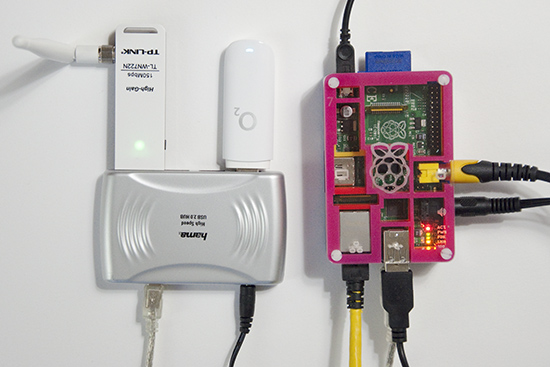
In a previous post, I talked about using the Raspberry Pi as a router. Now I wanted to add a WiFi device, and use the Pi as an access point as well. The Pi has three network interfaces: wlan0 is the newly added WLAN device, eth0 is my LAN, and ppp0 is a USB GSM modem connecting everything to the internet.

The primary reason for all of this is to have an access point for an Android phone. It turns out that an ad-hoc network is not enough - Android connects only to real access points (unless rooted and configured to be less suspicious). So the task now is to set up a Linux access point.

Software-wise, the access point functionality is provided by hostapd, which can be installed on the Pi easily.
sudo apt-get install hostapd
The hardware part is quite tricky though - not every wlan card works in access point, or managed, mode in Linux. The state of support in the various drivers can be found at  linuxwireless.org. Among the USB WiFi sticks, ath9k_htc seems well supported. I ended up buying a TL-WN722N, since it is supported by the ath9k_htc drier, and the external antenna looks efficient. It has worked very well so far, and is in daily use. Below, I describe the steps required for setting up everything. I am using Raspbian, but most of the things should work on any distribution.

The steps
Set up a DHCP server. Edit /etc/dhcp/dhcpd.conf and add the following lines.
subnet 10.10.0.0 netmask 255.255.255.0 {
range 10.10.0.25 10.10.0.50;
option domain-name-servers 8.8.4.4;
option routers 10.10.0.1;
interface wlan0;
}
If you already have an entry for DHCP on another subnet on another interface, make sure that the old subnet declaration also specifies for which interface it applies. Next, execute the following commands in a terminal, as root.

ifconfig wlan0 10.10.0.1    #bring up the interface
/etc/init.d/isc-dhcp-server restart #restart the DHCP server
echo "1" > /proc/sys/net/ipv4/ip_forward #turn on IP forwarding
iptables -t nat -A POSTROUTING -o ppp0 -j MASQUERADE #add a routing rule.

Replace ppp0 on the last line by the interface connected to the internet. For me ppp0 is a GSM modem.

Edit  /etc/hostapd/hostapd.conf . Add these lines (as a starting point):
interface=wlan0
driver=nl80211
ssid=YOUR_STATION
hw_mode=g
channel=11
wpa=1
wpa_passphrase=SECRETPASSWORD
wpa_key_mgmt=WPA-PSK
wpa_pairwise=TKIP CCMP
wpa_ptk_rekey=600
macaddr_acl=0

Next, start the access point by running hostapd.

hostapd -d /etc/hostapd/hostapd.conf

-d is for debugging output. -dd shows even more. Can be useful while setting up.

Now you should be able to connect to your new access point! Note that when hostapd quits, wlan0 looses it's IP address. So the IP must be set each time before hostapd is run.
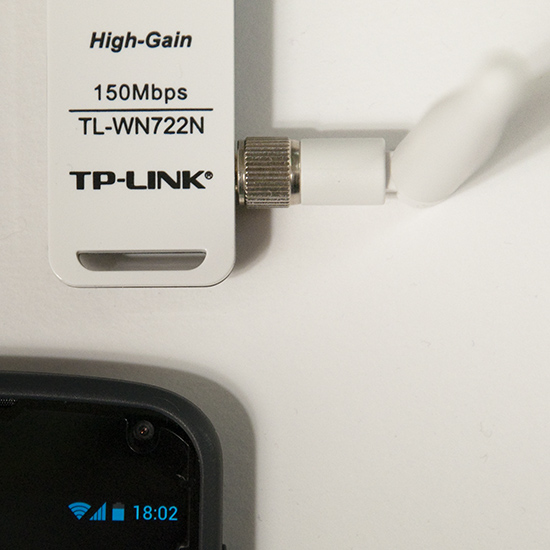
A TP-link TL-WN722N used as an access point

If everything works with this setup, it is convenient to automate the startup procedure, so that the access point is enabled at each boot.

To bring up wlan0 at boot, add the following to /etc/network/interfaces
auto wlan0
iface wlan0 inet static
address 10.10.0.1
netmask 255.255.255.0
To start hostapd automatically, add the command to /etc/rc.local:
hostapd -B /etc/hostapd/hostapd.conf
-B is for running in the background, as a daemon. Messages are logged in /var/log/syslog.

For setting up the IP forwarding stuff permanently, see my previous router post, and this nice guide.

So far I am very pleased with this setup. The only drawback is that the LAN on eth0 and the wireless network are separate and isolated from each other. Perhaps it's possible to construct a network bridge between the LAN and the WLAN interface. Then the two networks would appear as one, but this I leave for the next hacking session.

Add randomness!
Finally a note about a puzzling message from hostapd. When run with the flag -dd, hostapd works, but outputs
Add randomness: count=1 entropy=0
Add randomness: count=2 entropy=1
Add randomness: count=3 entropy=2
and so on, with a new line every second or so. I thought this had to do with /dev/random running out of random bits, but this is not the case.

Reading the source code of hostapd (version 1.0, since this is what I have on the Pi), this turns out to be a normal and harmless debugging message.  Hostapd keeps an internal pool of random bits (for encryption), in addition to the random numbers it reads from /dev/random. In different places in the program, random (or at least unpredictable) data is mixed into this pool. For example the signal strength of each received packet is used in this way. The "Add randomness" message is printed each time data is added to the pool. This is done in the function
random_add_randomness (const void *buf, size_t len)
in the file hostapd-1.0/src/crypto/random.c. So, in summary, the message can safely be ignored, and goes away if one runs hostapd without the -dd flag.

However, on a small system like the Pi, there is a risk of depleting /dev/random, especially just after a boot. I observed these messages from hostapd:
random: Got 18/20 bytes from /dev/random
random: Only 18/20 bytes of strong random data available from /dev/random
At this point I installed the program haveged,
sudo apt-get install haveged
Haveged is a program that helps with providing randomness or entropy, which it collects faster than the kernel does by default. I have not seen the message since then.

Saturday, February 16, 2013

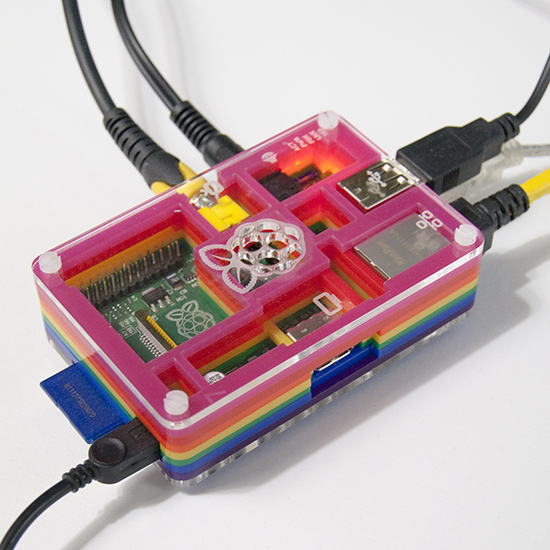
A Pibow case!

My Raspberry Pi in its new Pibow housing.
For Christmas I got a Pibow case. I like it very much! The Pi in the Pibow case feels nice and robust. The Pi gets slightly warmer in the case than without one, but this has not been a problem at all.

Wednesday, January 2, 2013

Wiring A Wireless Doorbell

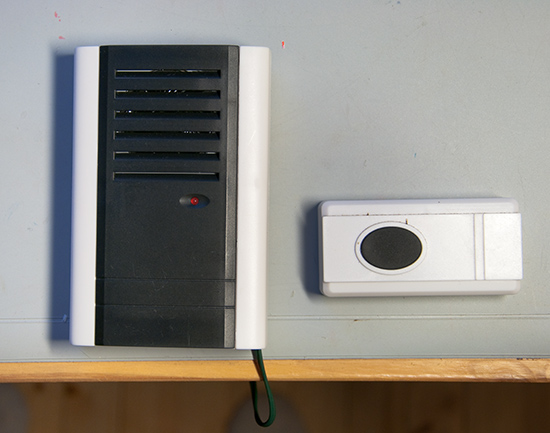
Wireless doorbell

My father-in-law installed a wireless doorbell. The ring-button outside the door contains a battery and a radio transmitter, the indoor unit contains a radio receiver and a speaker. It turned out that the battery in the ring-button outside does not like the cold Finnish winter, so it went flat. It seems this doorbell is best suited for indoors use...

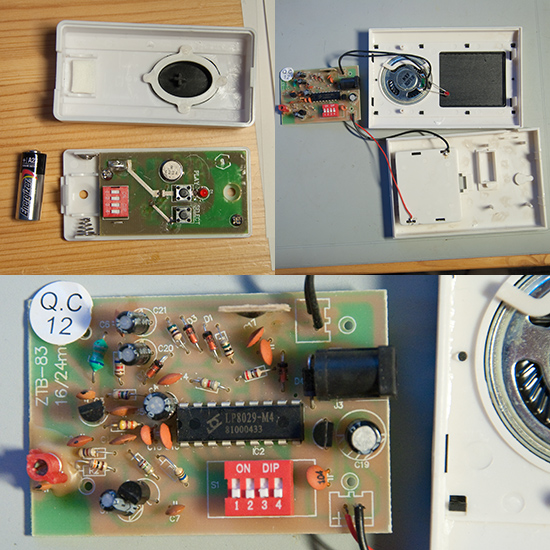
We planned to replace the transmitter with an old-fashioned switch with wires, and move the transmitter indoors. Opening up both the receiver and the transmitter first revealed a rather sloppy soldering job, then something about the design of the transmitter and receiver.

Wireless doorbell LP8029

The transmitter contains an encoder chip LP801B, while the receiver contains a LP8029 decoder. The radio circuitry appears to be built with discrete components in both units. The transmitter circuit board has two push-buttons: one for ringing and one for changing the melody. Only the ring-button is accessible when the cover is closed.

The receiver contains a melody generator chip, under a black plastic blob. Both units have a bank of four dip switches. Pressing the transmitter button causes a noise inside only if the switches in the receiver and transmitter are in identical positions, this is to avoid hearing the doorbells of all neighbors.

modified wireless doorbell

The initial plan was to move the transmitter inside, and connect the ring-button outside in parallel with the ring button on the transmitter. After a look at the Japanese LP8029 data sheet, I found a point in the receiver circuit that starts the ringing noise when momentarily connected to the positive supply. I wired the outdoors button to this point. The transmitter module is now needed only for selecting the melody, the receiver on its own works as an old-fashioned wired doorbell.

schematic

It was hard to find any information in English about the LP801B and LP8029 chips. An Austrian hacker found the same encoder chip in the transmitter for radio controlled mains switches. He figured out how to connected the transmitter to a microcontroller, to switch things on and off from a program.

Sunday, November 18, 2012

Boxing the 'Berry


The raspberry router of an earlier post turned out to work well, but it definitely needs an enclosure. The fast & easy solution - put everything inside a plastic Smart Store box! (The same kind of box we modified for storing Legos.) The box contains a USB hard drive, as well as the Pi and GSM modem, so we can use the Pi as a file server.

The Pi, the network switch, the USB hub and the hard drive each has its own power supply, so we included a power strip in the box. The many power sources take up a lot of space in our current system. If all the devices could share one, the system would shrink considerably.

Each machine has its own LED, and at night, the whole thing looks like a box of holiday decorations.

The box is kept slightly ajar for the cables going into the box, which seems to provide enough ventilation as well. Measuring the raspberry's CPU temperature with
cat /sys/class/thermal/thermal_zone0/temp
consistently reports around 46 C.

This setup turned into a surprisingly nice media player as well, once I connected our old TV set to it. We have no keyboard connected to the Pi, so we just ssh to it and run the omxplayer. I plan to give XBMC a try later, but getting it set up on a standard raspbian systems seems rather involved.

The current setup is somewhat temporary - in the future, I hope to put everything inside the case of a desktop PC, to function as a power conserving and silent always-on server, independent of the main PC.

Wednesday, October 17, 2012

WiFi screen


We live on the edge of wireless reception. Even with an external antenna in the window, the signal was not quite strong enough and the connection was frequently dropped. Our friend Halza had the idea to use a strainer as a reflector. This trick works great for us too, and improves the reception considerably.
The WLAN antenna inside the strainer is one of these.

The WLAN signals are in the 2.4 GHz band, which means that one wave length is 12.5 cm. Already a reflecting plane, placed 1/4 wavelength (3.1 cm) behind the antenna should provide constructive interference and some signal gain. A parabolic reflector with the antenna in the focal point provides more. The strainer not exactly a parabola, but has the right general looks.

Lots of variants on this idea are available.

Wednesday, August 29, 2012

SD card benchmark on the Raspberry Pi

This thread in the Raspberry forum and this post discuss benchmarks of different SD cards for use with the Raspberry Pi. I wanted to test my own card, and to do it in the Pi itself. An important conclusion of the two discussions is that the speed of small random writes is important for running an operating system of the card. What the card manufacturers report is the sequential read and write speed which can be substantially higher - these are important in cameras for example.

The posts suggest the program iozone for measuring the SD card performance. I could not find it as a raspbian package, but it was easy to compile from source. Very quick instructions follow.

wget http://www.iozone.org/src/current/iozone3_408.tar
cat iozone3_408.tar | tar -x
cd iozone3_408/src/current
make linux-arm
./iozone -e -I -a -s 50M -r 4k -r 512k -r 16M -i 0 -i 1 -i 2

The final command runs the test. This command line was suggested in the raspberry forum, for the options run iozone -h . Note that iozone tests the device where the current directory is located. The flags -e and -I are significant here. -e include fflush and sync in the timing, while -I requests the use of direct I/O, without any caching.

For my SanDisk 8G class 4 card (8 €, Media Markt) I got the following results. See here for a picture of the card and packaging.
                                          random  random   
reclen   write rewrite     read   reread    read   write
     4     913     991     3279     3278    3061     457
   512    5292    5370    11305    11304   11218    1319
 16384    5122    5442    11442    11442   11442    5406

The column reclen gives the size of the data blocks tested, while the other columns are speeds in KB/s. For this card, the important figure for small block random write is quite respectable but not as high as what other people in the threads above have reported for the best cards. Anyway, SanDisk cards of class 4 or 6 seem to top the list.

But benchmarking a SD card seems to be a more complicated topic than running the short test above. In practice using RAM for cache gives a huge performance boost, in particular for small writes. My guess is that whether the small random writes will be a bottleneck or not is very much dependent on the application.

I ran two further tests with iozone, using the flag -a (for automatic): once without cache enabled (-e -I) and once with cache. In the -a mode, iozone runs tests for many different file sizes and block sizes. Each test ran for over an hour before I interrupted it. This made me wonder if this amount of writing will wear out the SD card. So far I have seen no problems.

As long as the data written fits in the RAM, cache gives a huge improvement. At a file size of 64 Mb there is a significant speed drop when the cache becomes too small.   

Friday, August 17, 2012

Trying out the Raspberry Pi

I am a happy owner of a Raspberry Pi - a tiny (and really cheap) computer, capable of running Linux. Now I too am a part of the Raspberry revolution. I am just starting to try it out, but I already got our platform game running on it! More on the game will follow in a later post, first some notes on the Pi itself.

I decided to try out the Raspbian flavor of Linux on the Pi. I chose this for the hardware floating point support, and since the Raspberry Pi foundation recommends it.

I currently don't have an USB keyboard, so I hoped to access the Pi over the network with ssh. Luckily, Raspbian is set up with an ssh server running. The only things required is to make sure that the Pi gets an IP address when it boots, and then find out which IP it got so that you can ssh to it.

I connected the Pi to a laptop running ubuntu, and tried to use the network manager on the laptop to give the Pi an IP address with DHCP when it boots. Sadly, this did not succeed. Apparently the laptop Ethernet interface stays "down" as long as nothing is connected to it (the Pi is off), and the Pi got no IP address when it booted.
Fortunately it was easy setting up a DHCP server on the laptop manually:
1) Turn the network manager off, so it does not get in the way
2) sudo ifconfig eth0 192.168.0.2 #enable eth0, give it an IP address
3) sudo udhcpd -f
4) boot the Pi, wait a while.
5) udhcpd prints out the IP address it offers
6) ssh to the address. User name pi, password raspberry.


If you have the Pi connected to a TV or monitor, you will see the Pi printing some messages while it boots, and then launch the raspi-config program.  Without a keyboard raspi-config is not usable, but you can still access the Pi with ssh. Raspi-config seems to start automatically at each boot, until you have completed it once.  It can be run from a terminal at any time.  If one wants the Pi connected to the internet, some more networking is needed than what I describe above. A router would probably be the most convenient solution. I have had success with Windows "internet connection sharing".

EDIT: When trying to share an internet connection from an Ubuntu laptop to the Pi, this bug bit me. After the suggested work-around, sudo killall dnsmasq on the laptop, I could boot the Pi and it got an IP address. Then the next problem appears: how to find the IP address of the Pi? The Pi prints it on the TV or screen during boot. If no screen is connected one can use the nmap tool:
nmap -sP 10.42.0.1-254
this IP range being the one that Network Manager seems to offer. -sP tells nmap to ping all the hosts in the given range.

I have a PAL TV connected to the Pi. PAL needs a setting in the configuration file config.txt, located on the boot partition (the small, FAT one) on the SD card. Either edit this file on the card and uncomment the line
sdtv_mode=2
or use raspi-config on the Pi.


In this discussion and here I found interesting observations about which SD cards work well with the Pi. Apparently the fancy and expensive cards, called Class 10, are not the best since they are highly optimized for sequential reads and writes. This is good for photography but not for running Linux of the card. For this application, the speed of short random reads and writes is much more important, and these speeds may well be much better on cheaper cards of lower class. I got an 8 Gb Class 4 Sandisk SDHC card from the local Media Markt for 8 €. It seems to work well, but I have no serious benchmarks yet.

Tuesday, September 13, 2011

The CueCat barcode scanner

I wanted a barcode reader, mainly for paying bills. I found this device, the CueCat. I bought two Cats from librarything. I have been happy with them, even if it took me a while to master the scanning procedure. This is the cheapest scanner I could find, but it comes with an interesting "feature": the barcode data sent to the computer is encrypted and additionally contains the serial number of the Cat. All of this was part of the business model of the company that made the scanner, they tracked the behavior of individual users for advertisement purposes. Now the company is dead, and a huge stock of CueCats remains. Wikipedia describes the history of this device.

The scanner connects to the USB port, and behaves like a keyboard. When a barcode is scanned, the cat just types the letters and numbers of the code.

Fortunately it is easy to get rid of the scrambling and serial number. The USB version can be "declawed" by simply cutting one pin on one of the microchips inside it (pin 5 on the chip marked HMS91C7316). I heated the pin with a soldering iron and lifted it from the board with a needle. Others recommend cutting it with a small pair of scissors. This probably works just as well, I just thougth desoldering would be more reversible. The librarything wiki also contains declawing instructions. Another nice page with instructions (in Finnish).
Related Posts Plugin for WordPress, Blogger...